
comfyui-mvnt package adds MVNT motion generation as native nodes inside ComfyUI. Once installed, you can wire audio files through a chain of MVNT nodes to produce a 3D preview and a dance video — no separate API client or scripting required. The source repository is at github.com/mvnt-app/ComfyUI-MVNT.
Install the package
Choose whichever method fits your ComfyUI setup.- ComfyUI Manager
- Comfy Registry
- Manual
- Open ComfyUI Manager from the ComfyUI interface.
- Search for MVNT.
- Select
comfyui-mvntfrom the results and click Install. - Restart ComfyUI when the install completes.
Set up your API key
You can provide your MVNT API key in two ways. Environment variable — set this before launching ComfyUI:api_key field on any MVNT node in the ComfyUI canvas.
You can create and manage API keys in MVNT Studio Platform.
Build a basic workflow
This section shows how to generate 3D dance motion from music using the ComfyUI toolbox. The workflow is a node-based pipeline where each chained node prepares, submits, and previews the audio-to-motion generation result.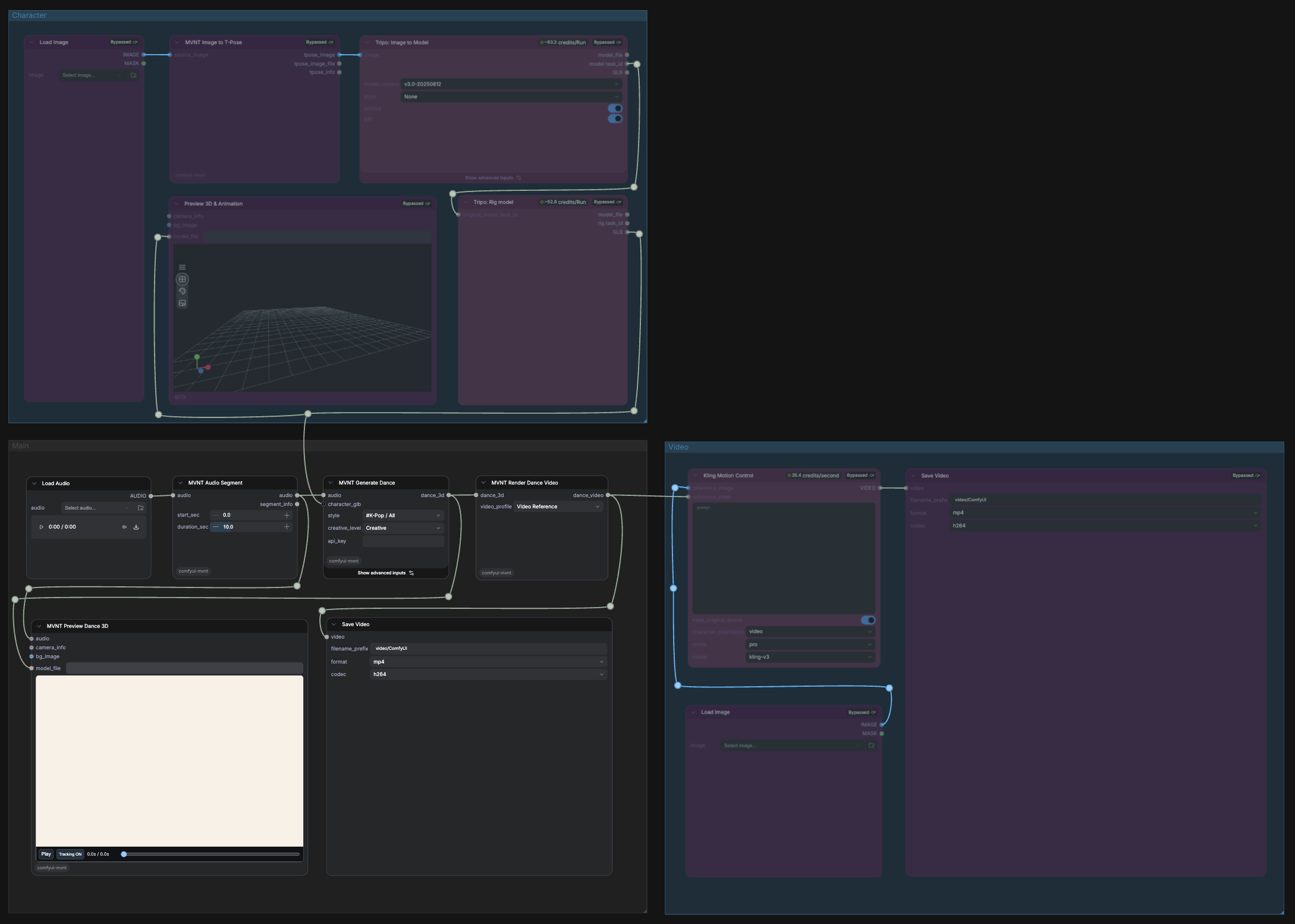
1
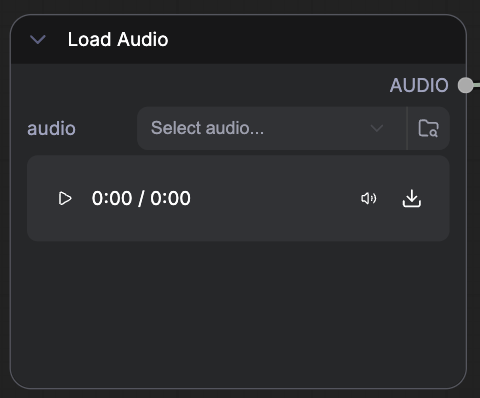
Load Audio
2
MVNT Audio Segment
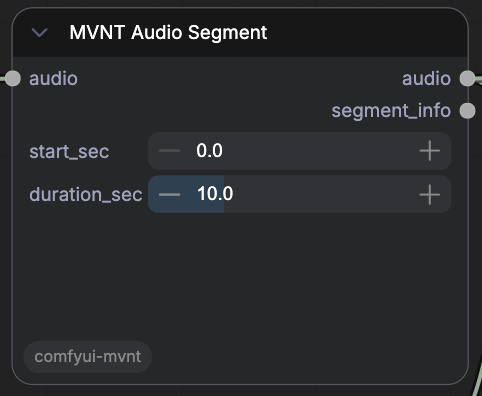
start_sec: The segment start time, in seconds.duration_sec: The duration of the generated audio segment, in seconds. Defaults to 10 seconds, supports up to 40 seconds, and can be adjusted in 0.1-second increments.
3
MVNT Generate Dance
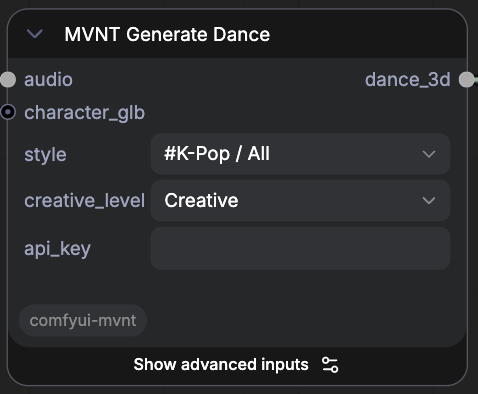
- Choose the desired motion style in the
stylefield. - Enter your issued API key in
api_key. - Optional advanced input: set a seed value. The default is
-1.
4
MVNT Preview Dance 3D
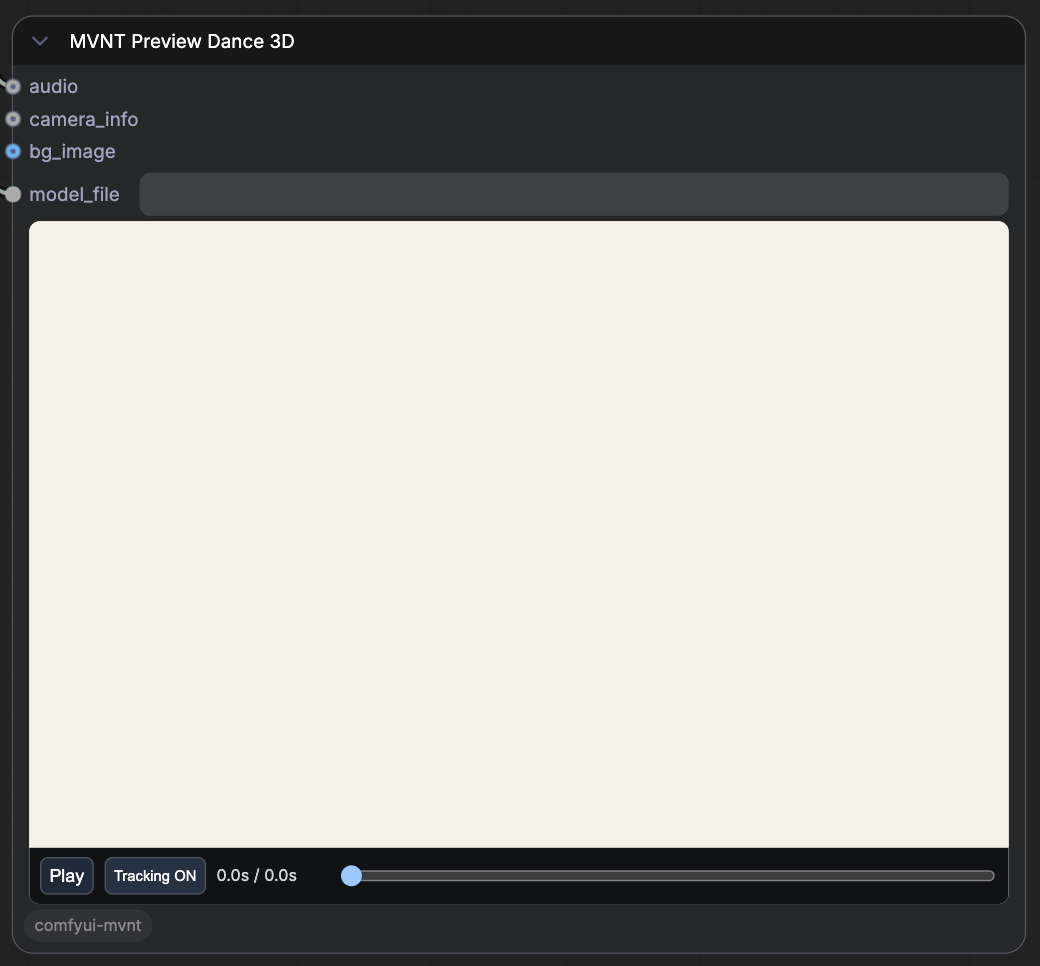
5
MVNT Render Dance Video
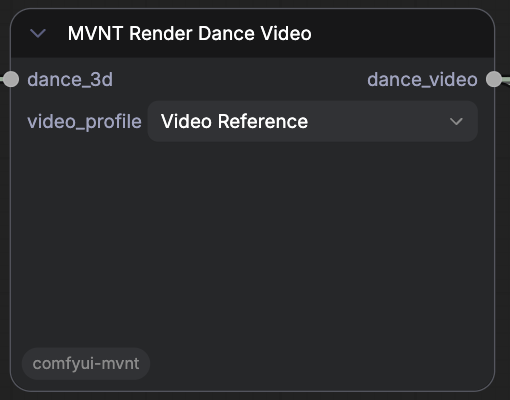
video_profile, see the Video control section.video_profile: Specify the rendering settings to use. The default isVideo Reference.
6
Save Video
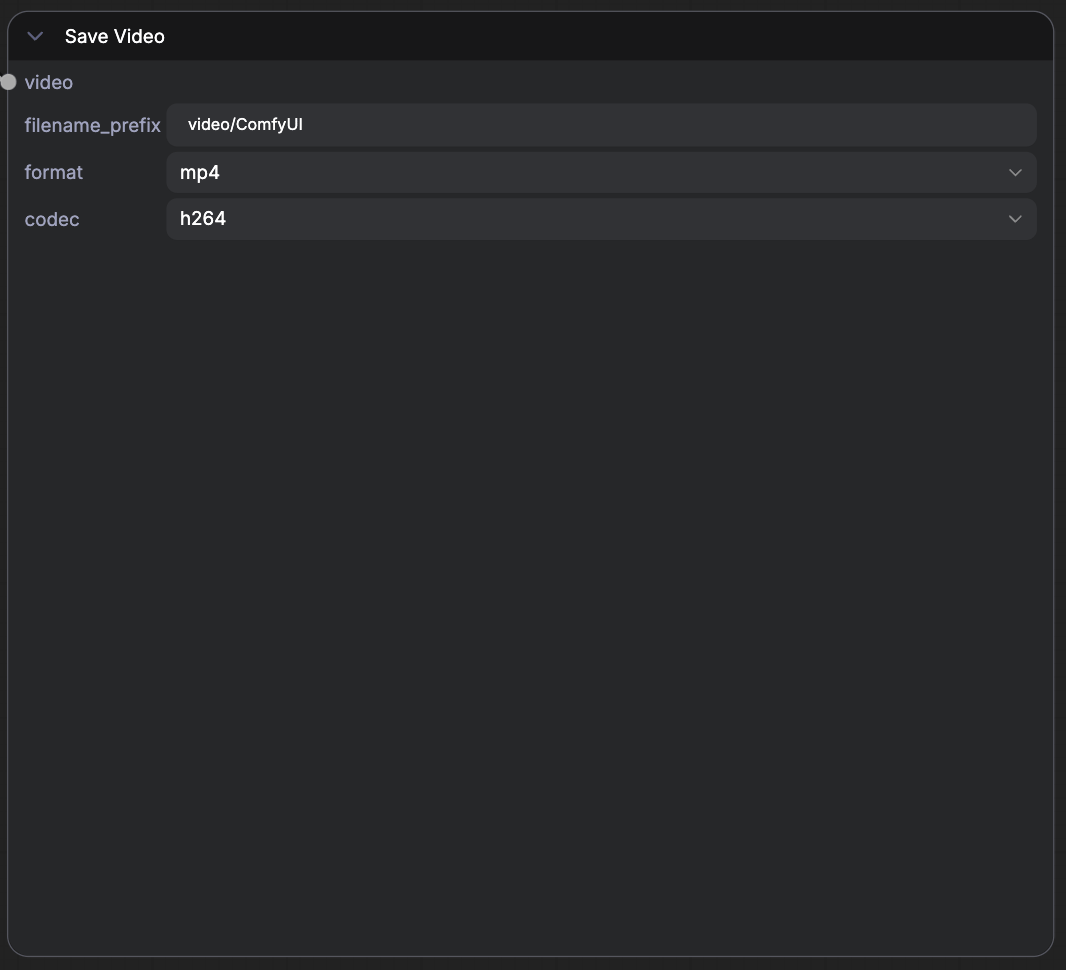
filename_prefix, format, and codec to configure the file name and rendering information. When generation completes, you will find two output files in your ComfyUI output directory:Character Control
Use character control when you want the generated dance to run on your own character instead of the MVNT original character. MVNT Generate Dance accepts an optionalcharacter_glb input. When a compatible character GLB is connected, MVNT generates the motion first, then retargets that motion to the supplied character. The dance_3d output becomes the animated custom-character GLB.
1
Load Image
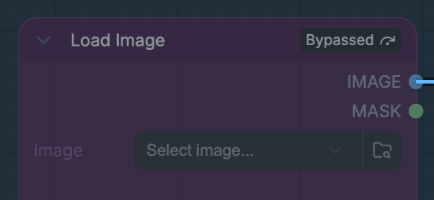
2
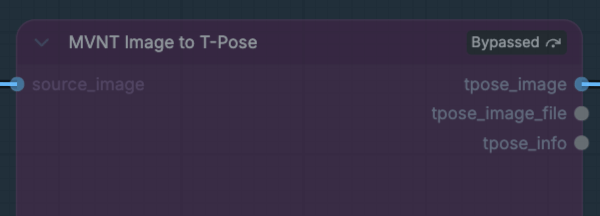
MVNT Image-to-T-pose
3
Animate a custom character with Tripo
Use Tripo’s model generation workflow to turn the T-pose character image into a rigged GLB that MVNT can animate.
- Add Tripo’s Image to Model and Rig Model nodes.
Video Control
Use video control when you want the MVNT model to drive motion in a 2D image-to-video workflow. Generate dance motion with MVNT Generate Dance, use thekling video profile output as the motion reference, then follow Kling’s Motion Control workflow to animate your target image.
reference_image: Upload the image you want to animate.reference_video: Theklingvideo profile output from MVNT Generate Dance is used automatically.